
Verify Device Connection in Device Manager
- Open Device Manager (press
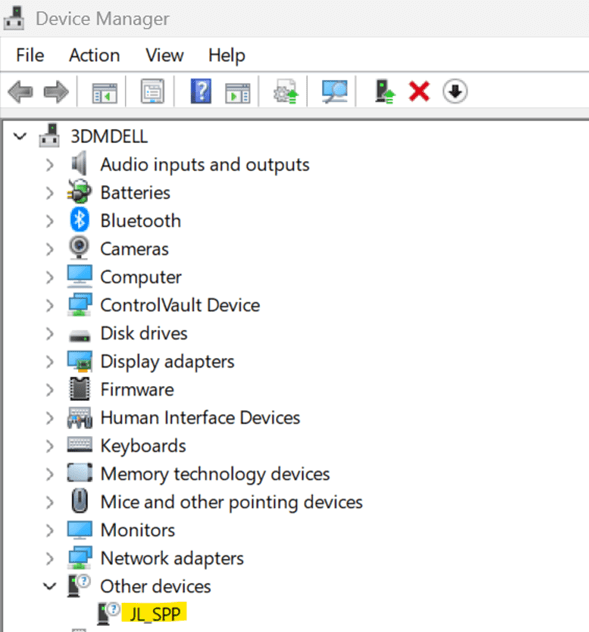
Win + X→ select Device Manager). - Under Ports (COM & LPT) or Universal Serial Bus controllers, confirm that the connected device is visible.
- The device should appear without any error symbol (yellow triangle or red cross).
Remove Existing EzCad Driver (if installed separately)
- If you have previously installed the EzCad driver manually, it must be uninstalled.
- Open Control Panel → Programs and Features.
- Locate EzCad driver (if present) and uninstall it.
Rely on LightBurn for Driver Management
- Do not reinstall EzCad drivers separately.
- LightBurn automatically uses the EzCad driver files included in its program files.
- This ensures proper compatibility and prevents conflicts between duplicate driver installations.
Reconnect Device and Test
The device should be detected automatically using the driver sourced from LightBurn’s installation folder.
Reconnect your laser device via USB.
Open LightBurn.
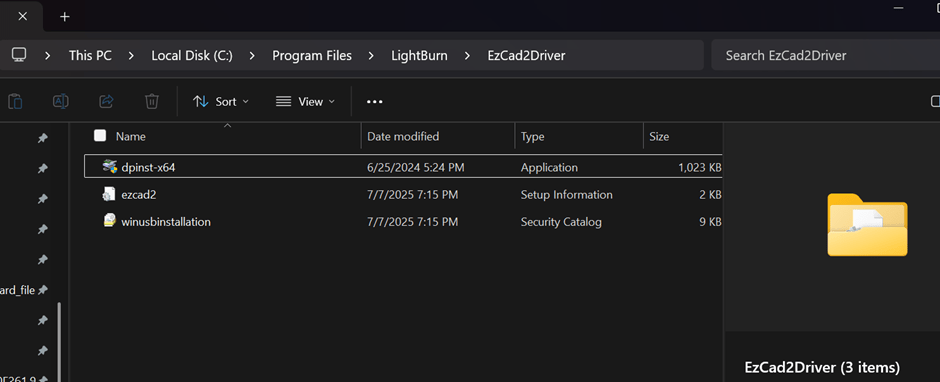
Navigate to light burn software folder in program files.
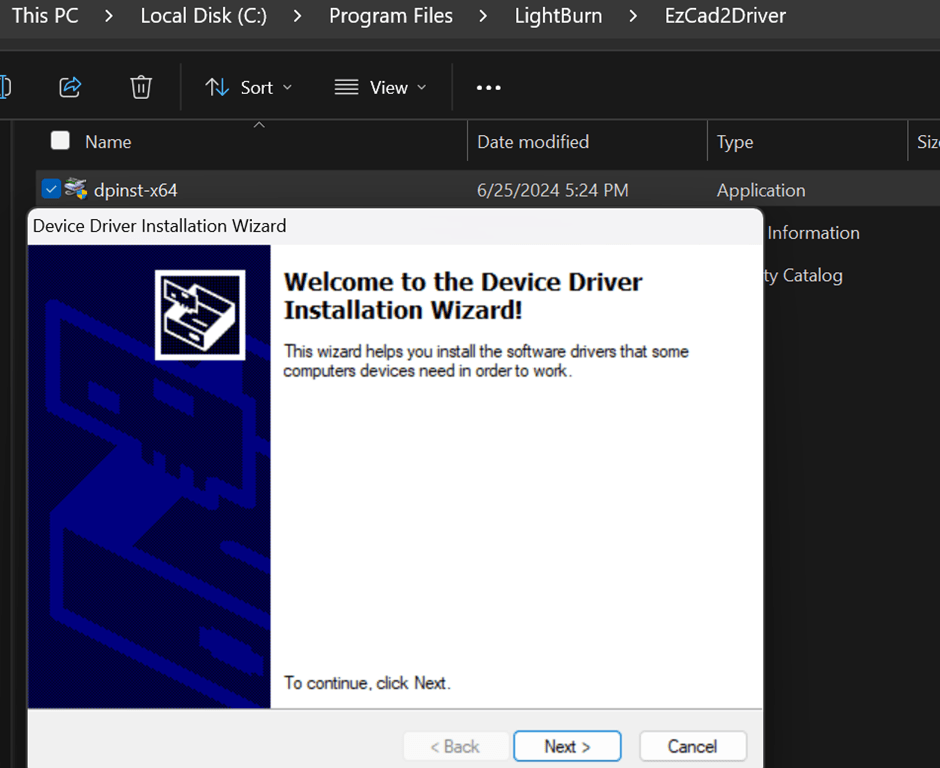
Double click dpinst_x64 and follow the installation process.
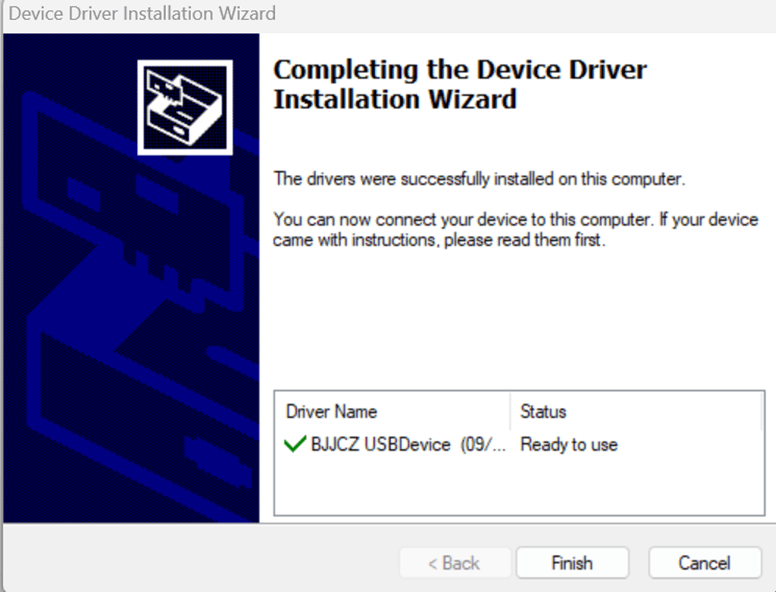
Following prompt should be visible after completion of the installation.
 infinitylaser.co.nz
Leave a comment